
Skip to content
  • support@smarthostee.com
  • Hosting Flash Sale: Starting at
  • $14.99 / Mo
  • Need Help?
  • Login
  • Reseller Hosting
  • WordPress Hosting
  • Shared Hosting
  • Email Hosting
  • Domain Name
  • Help Center
    • FAQs
    • Contact Us
    • Knowledge Base
  • Reseller Hosting
  • WordPress Hosting
  • Shared Hosting
  • Email Hosting
  • Domain Name
  • Help Center
    • FAQs
    • Contact Us
    • Knowledge Base
Client Area
  • Home
  • Store
    • Browse All
    • Reseller Hosting
    • WordPress Hosting
    • Shared Hosting
    • Email Hosting
    • 360 Monitoring
    • Site & Server Monitoring
    • Register a New Domain
    • Transfer Domains to Us
  • Announcements
  • Knowledgebase
  • Network Status
  • Affiliates
  • Contact Us
  • More
  • Account
    • Login
    • Register
    • Forgot Password?
  • 0 Shopping Cart
  1. Portal Home
  2. Knowledgebase
  3. SolusVM
  4. SolusVM VPS Management
  5. How to Delete Categories in WordPress

  Categories

CloudLinux (cPanel)
10
CloudLinux (WHM)
2
cpanel
24
Databases
11
DirectAdmin
47
DNS Nameservers
6
Domains
12
Email Hosting
15
FTP
9
Hosting Panel & Plan Comparisons
1
Installing a Control Panel
6
JetBackup
2
Mail Filters & SPAM
8
Migration
1
Mobile
11
Others
3
PayPal
7
Plesk
47
Policies & Compliance
1
Reseller Hosting
4
Security
10
SiteWorx/InterWorx
57
Softaculous
67
SolusVM
22
SSL Certificates
6
Virtualizor
19
WHM
20
WordPress
17

  Categories

  Support

My Support Tickets
Announcements
Knowledgebase
Downloads
Network Status
Open Ticket

How to Delete Categories in WordPress Print

  • 0

If you want to remove the WordPress category, then follow this instruction:


1. Log in to the WordPress dashboard.


2. From the Dashboard menu, go to Posts and click on Categories.
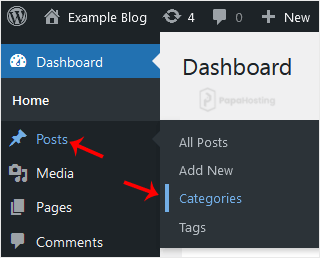
wp-dashboard-category-option.gif


3. Hover your mouse over a category you want to remove and click on Delete. The confirmation option will appear. Confirm with OK.
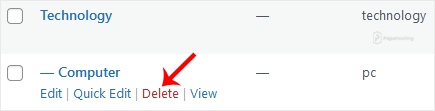

wp-remove-category-2.gif


Was this answer helpful?

Related Articles

How to Reboot/Restart VPS in SolusVM You can restart VPS via the command line or SolusVM. How to Reboot/Restart a VPS via SolusVM?... How to Forcefully or Gracefully Shut Down the VPS in SolusVM How to Gracefully shut down the VPS in SolusVM? 1. Log in to your SolusVM Control Panel.2. If... How to Start/Boot Your VPS in SolusVM If your VPS is down/offline, you can start it using SolusVM.1. Log in to your SolusVM Control... How to Access VPS via VNC in SolusVM You can access your VPS via VNC in an emergency, such as when a firewall blocks your IP, the... How to Reinstall OS Using SolusVM OS-Reinstaller You can easily Install/Reinstall the operating system using SolusVM. However, note that this...
« Back

  Support

My Support Tickets
Announcements
Knowledgebase
Downloads
Network Status
Open Ticket

Loading...
Loading...
Choose language
العربية
Azerbaijani
Català
中文
Hrvatski
Čeština
Dansk
Nederlands
English
Estonian
Persian
Français
Deutsch
עברית
Magyar
Italiano
Macedonian
Norwegian
Português
Português
Română
Русский
Español
Svenska
Türkçe
Українська

Generate Password

Please enter a number between 8 and 64 for the password length
Blue logo (1)

1111B S Governors Ave, STE 48014

Dover, DE 19904

United States

+1 (669) 317 1977

info@smarthostee.com

Quick Links

  • Blog
  • Sign In
  • Sign Up
  • Blog
  • Sign In
  • Sign Up

Help

  • FAQs
  • Contact
  • FAQs
  • Contact

Services

  • Reseller Hosting
  • Shared Hosting
  • WordPress Hosting
  • Domain Name
  • Email Hosting
  • Reseller Hosting
  • Shared Hosting
  • WordPress Hosting
  • Domain Name
  • Email Hosting

Company

  • Privacy Policy
  • Terms of Service
  • Acceptable Use Policy (AUP)
  • Cancellation & Refund Policy
  • Announcements
  • Privacy Policy
  • Terms of Service
  • Acceptable Use Policy (AUP)
  • Cancellation & Refund Policy
  • Announcements

Social Media

Facebook Instagram Linkedin

© 2025 Smart Hostee Labs Inc. All rights reserved.

Founded in U.S • 99.9% Uptime Guarantee